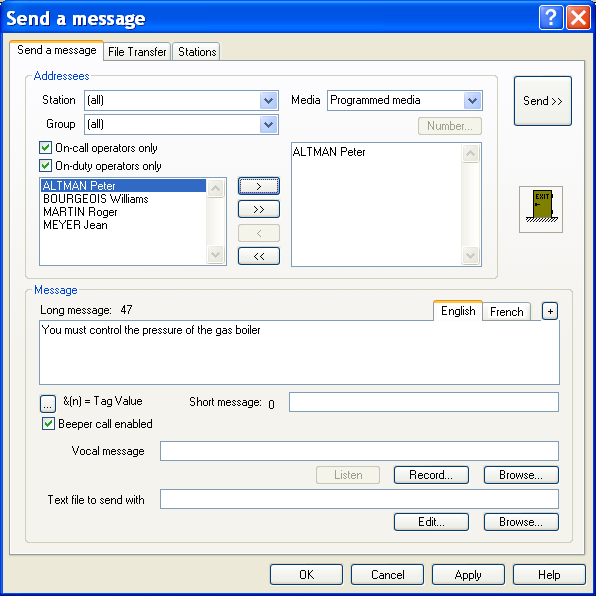
Sending a Message
To transmit a message to one or more operators, select the command Send a message... in the Operation menu, or simply click on the button .
This dialog box also can be called from the tree of the main screen or the associated views by selecting the Call... command in the contextual menus attached to the On-Call Management sub-tree (see § 4.6.1.7). In this case, the operators to call or pre -selected in function of the current selection in the concerned list.
Addressees To select the recipient operators for the message, you only have to select them in the left list (user list) then drag them with the mouse to the right list (recipient list). One also can click on the button to copy the selected operators to the right list.
The list of operators proposed as candidate to be recipient of the message (left list) can be restricted by the followings filters:
- Station: if a station is selected in this list, only the op erators attached to this station are proposed.
- Group: if an on -call group is selected in this list, only the operators belonging to this group are proposed.
- On-call operators only: if this box is checked, only the operators belonging to an active team (current on-call team of each group) and active in this team (not relief operators) are proposed. If an on -call group is selected, only the operators of the active team of this group are proposed.
- On-duty operators only: if this box is checked, only the operat ors who are on duty and available to be called for service messages are proposed. If the list of proposed users matches the list of wished recipients for the message, one can click on the button to copy the entire list to the recipient list (right list). In case of error in the selection of recipients, select in the right list the operators to remove from the selection, then drag them to the "Exit" icon or click on the button . The button reinitializes the recipient list. The dropdown list Media can be used to specify the media one whishes to use to transmit the message. By default, the choice "Programmed media" is proposed, meaning the message will be transmitted by using the currently active number of each operator to call (through the attached media ). If a type of media is specified (Email, Fax, Pager, SMS or Vocal), the message will only be transmitted to the recipients through the specified media. If an operator owns several numbers attached to the specified media (several fax numbers for example), the first active number with the specified type will be selected. If no number with the specified type is active, the first number with that type will be selected. The recipient operators who do not own a media of the specified type cannot receive the message. They are grayed in the recipient list. The dial number to use to reach a user can be specifically designated. This number will be called regardless of the current active dial number of the user. To designate a specific dial number for the user selec ted in the receiver list, click on the Number... button. In the displayed dialog box, select the wished number. When a dial number is specified, its identifier in the dial number directory of the user is written after the user name in the receiver list under the form <Id>. To suppress the selection of the number to use to call an operator, select the operator in question in the recipient list (right list), click on the Number button then select the option Programmed number. Message According to the media used to reach each of recipient operators, the message can be transmitted under various forms:
- Long message: message up to 512 characters, destined to operators equipped with an alphanumeric receiver device capable of displaying a relatively long text message (email, fax, SMS...). The number of entered characters is displayed on the right of the edit field. The character set is free. The characters not allowed by a type of receiver will be filtered out at the transmission time.
The long message can contain variable fields. To incorporate in the message the value of a tag of the supervision list, click on the button . In the displayed dialog box, select the wished tag then validate. The numerical identifier of the tag is inserted in the edit field at the current cursor position, under the form: &(tag id).
- Short message : message up to 32 characters, destined to operators equipped with a receiver having a small display capacity (pager, beep...). The number of entered characters is displayed on the right of the edit fie ld. The character set is free. The characters not allowed by a type of receiver will be filtered out at the transmission time.
- Vocal message: vocal message destined to operators to reach by telephone. To define vocal message, click on the Browse... button to browse files for a sound file containing a pre -recorded audio message or click on the Record... button, to directly record the audio message. The audio file is automatically created with the format name "MCxxxx.WAV", "xxxx" being a numerical code betwee n "0000" and "9999". The file is recorded in the sub-directory "MESSAGE". Click on the Listen button to listen to the selected audio message.
Remark:
If the " Text To Speech " option is available, the vocal message can be directly synthesized from the long message entered. To request for the synthesis of the text message, check the Vocal message option. To test the voice synthesis of the entered message, click on the Listen button. When checked, the Beeper call enabled option validates the call of operator s configured with a beeper number. A text file can be associated with the message. This file is used to transmit some further information by fax or email. It can be defined as "contextual" and incorporate the value of tags of the supervision list. Click on the Edit button to directly type the text to transmit. This text is recorded in a text file, in the "MESSAGE" sub -directory, with a name under the format "MCxxxx.TXT", "xxxx" being a numerical code between "0000" and "9999". Click on the Browse button to search and select an existing text file Language Transmitted information (long and short messages, vocal message, text file) can be defined in various languages, the information really transmitted being automatically selected according to the language of the recipient operator. The list of tabs displayed above the edit field "Long message" allows the selection of the typing language. The proposed languages are those which are already used (user interface language, language of defined operators). To add a language to the proposed list, click on the button on the right of the language tabs then select the wished language in the displayed list. To suppress a language, click on the same button, select the language to suppress then click on the "Mask" button. Validation / Transmission By clicking on the OK button, one leaves the dialog box with recording of the message in the mailbox of each of the operators selected as addressee. By clicking on the Send >> button, one leaves the dialog box with starting the i mmediate transmission of the message to the operators selected as addressee.