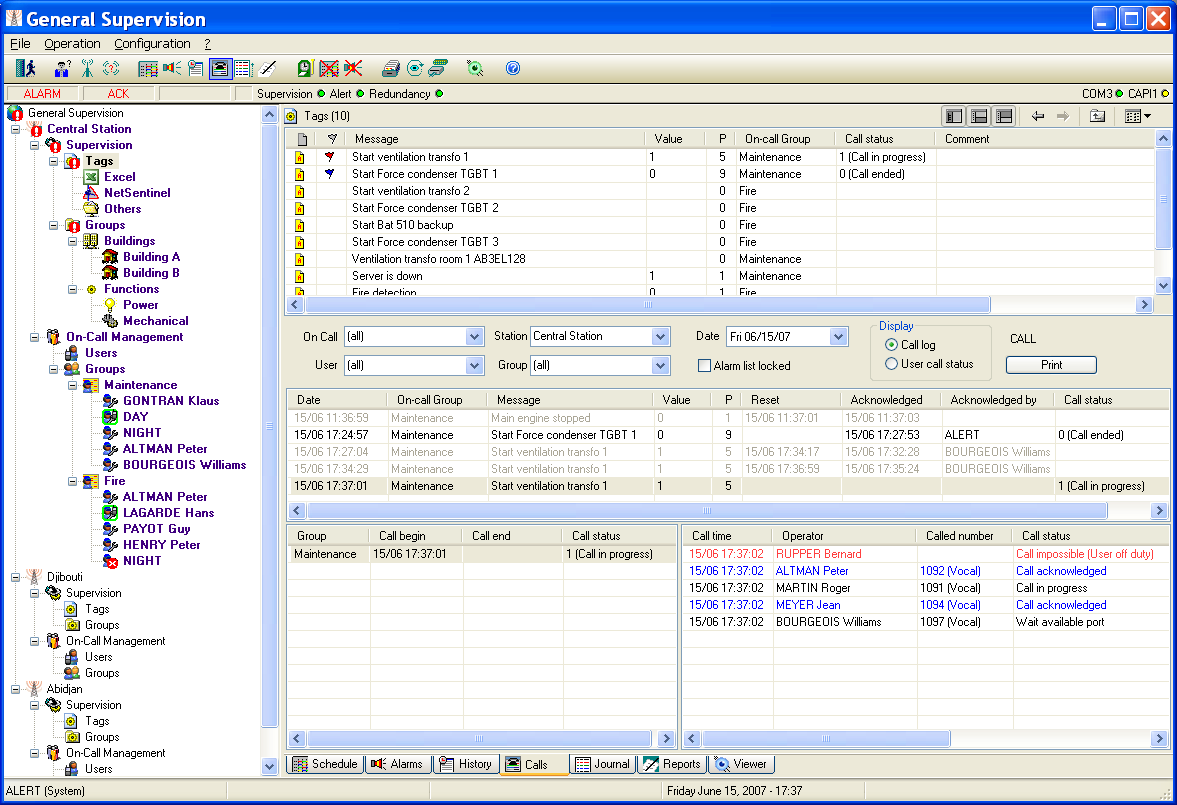
Call Overview
To display the call overview screen, select the Call overview... command in the Operation menu, or just click on the button . One can also display the call overview page by directly selecting the Calls tab on the bottom of the main screen. Note: the "Call Overview" feature is only available when the database export option is validated by the software license and activated (see § 7.1"General options").
This screen allows the visualization and control, in real time or diff ered time, the progression of calls triggered by the recorded alarms.
It includes the following parts:
(1) The upper part of the screen allows the selection of the alarms one wishes control the associated call cycle. (2) The first list below displays the a larm list corresponding to the criteria selected in the upper part. (3) The second list, on the left lower part of the screen, displays the list of on -call groups called for the alarm selected in the list above. (4) The third list, on, the right lower part of the screen, displays the list of the calls performed for the on-call groups selected in the adjacent list.
Select in the dropdown list Date the day one wishes control the treatment of detected alarms. By default, the current day is sel ected and the alarms of the current day are displayed in the alarm list, according to the selected criteria. If another day is selected and a new alarm appears, the current day is automatically selected to visualize the new alarm. To inhibit this automatic switching, when analyzing a call cycle of a previous day for example, check the box Alarm list locked.
The list of alarm to control can be reduced according to some criteria:
- Selection of a station If a station is se lected in the dropdown list Station, the alarm list will only contain the alarms attached to this station.
- Selection of a tag group If a tag group is selected in the dropdown list Group, the alarm list will only contain the alarms belonging to this group.
- Selection of an on-call group If an on-call group is selected in the dropdown list On Call, the alarm list will only contain the alarms attached to this group.
- Selection of an operator If an operator is selected in the dropdown list User, only the alarms acknowledged by this operator are displayed in the list.
Select in the group Display the wished type of display for the list of performed calls:
- Call log: all the performed calls are displayed in the call list (detailed analyz e of the execution of a call cycle).
- User call status : only the last performed call for each operator is displayed (visualization of warned operators).
The alarm list presents all the alarms of the select day, accordi ng to the selected criteria. The alarms currently processed (active or not acknowledged alarms) are displayed in black. The alarms completely processed (inactive and acknowledged, or prior recorded) are displayed in grey. The call status of an alarm is onl y displayed for the alarms currently processed.
Select in the alarm list the alarm to control. The groups called for this alarm are displayed in the group list (on the left lower part) and are automatically selected to directly visualize in the call list ( on the right) all the calls performed for this alarm. The calls completed and acknowledged are displayed in blue, the failed calls are displayed in red, and all others call status being displayed in black. The width of columns of each list can be visually adjusted by positioning the mouse cursor on the concerned size bar of the title line, then clicking and dragging the bar to get the wanted size. The displayed columns can be choose by clicking with the right button of the mouse on the title bar of the conc erned list then selecting in the displayed contextual menu the wished columns. The column order can be modified by simple drag and drop operation. When a new alarm appears, it is automatically added the actual alarm list and directly selected to visualize the calls performed for the new alarm. To inhibit this automatic selection, when analyzing a call cycle for example, check the box Alarm list locked. To acknowledge an alarm currently processed, click with the right button of the mouse in the alarm list on the alarm in question, then select the command Alarm acknowledgment in the displayed contextual menu. To acknowledge a call currently processed, or to abort it, click with the right button of the mouse in the call list on the concerned call, then select the command Call acknowledgment, or Call cancellation, in the displayed contextual menu.
To print the report of the calls performed for the selected alarm, in accordance with the selected display configuration (list, or der and width of displayed columns, selection of call log or call status), click on the Print button. The print report includes the following information: selected alarm (as displayed in the alarm list), list of called groups (as displayed in the group list), and list of performed calls (as displayed in the call list). The first time a print command is done on this screen, a dialog box is displayed to select the printer to use and define some printing parameters (portrait or landscape). For the next printin g commands, this dialog box is no more displayed. If needed, use the Print setup... command of the File menu to modify the printing parameters.