General Options
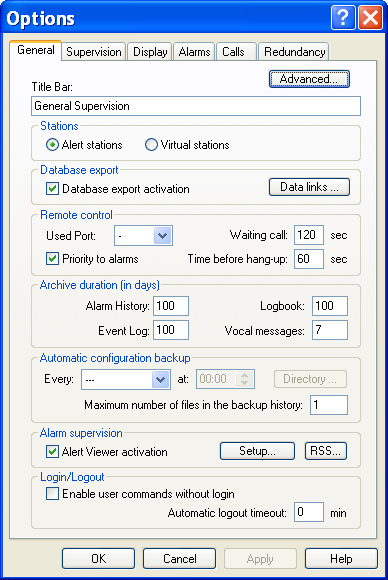
To access the configuration of the general options, select the Options... command of the Configuration menu. This dialog box also can be called from the contextual menu associated with the root of the tree in the main screen.
Advanced... Click on this button to define the advanced parameters of the software (starting page, user interface, running as service, basic language). See § 7.1.1Advanced parameters". Title Bar This field defines the content of th e title bar of the application (maximum 40 characters). The default title is "ALERT". Stations
Mode of management of the stations:
The Alert stations option indicates that the stations defined in the application are real stations equipped with the Alert so ftware for the alarm centralization and capable of managing a local on call organization in synchronization with the centralization station. The Virtual stations option indicates that the stations defined in the application are virtual stations, created to segment the data and/or the on -call management in meaning entities (representation of remote sites, companies, trades...). Database export This group allows the real time export to an external database (see § 8.3 "External database") to be configured and activated or deactivated. The commands of this group are only enabled when the "database export" option is validated by the software license.
-
Check the option Database export activation to activate the database export functionality. Uncheck this option to stop the database export.
-
Click on the Data links... button to select the files that define the link with the external database: AlertDB_AlarmDef.udl (configuration database) AlertDB_AlarmLog.udl (history database) By default, these files are installed in the application subdirectory "Bases". The link parameters with the wished database must be prior configured and tested by opening each of these files (by double click). Remote control This group defines the management parameters of external remote control software (see § 8.7 "Remote Control").
-
The Used port dropdown list designates the communication port to be shared with the remote control software. This port will be automatically assigned to the remote control software, either at the software launching if the remote control software is running at this time and is using the port, or on explicit requirement of a remot e user (command "99" of the vocal server).
-
The Waiting call edit field defines the maximum time waited for the remote control callback. This time is counted from the line hang-up. After this delay, the remote control software is breakdown and the communica tion port is retrieved by Alert. In order to give time to the remote control application to be launched, it is preferable do not enter a value below 30 seconds.
-
When the Priority to alarms option is checked, all call requested during a remote control sessi on and that will need the port used by the remote control software, will cause a warning message to be displayed to inform the operator that the remote control session will be aborted in the delay that has been defined in the adjacent field.
-
The Time befor e hang -up edit field defines the time waited before aborting the remote control session when Alert needs the port used by the remote control application to make a call. This delay is taken in account only when the option "priority to alarms" is checked. Archive duration This group defines the duration of storage of recorded data. Any data recorded before the specified archival duration for the concerned data category is automatically destroyed at the start-up of the Alert application and at every change of day.
The archived data are:
- Alarm History: daily files of type "HYYMMDD.LOG" located in the "HISTO" subdirectory (100 days by default).
- Event Log: daily files of type "TYYMMDD.LOG" located in the "TRACE" subdirectory (100 days by default).
- Logbook: daily files of type "RYYMMDD.LOG" located in the "REPORT" subdirectory, as well as the associated audio files of the "MYYXXXXX.WAV" type (100 days by default).
- Transmitted vocal messages : audio files of type "MCXXXX.WAV" in the "MESSAGE" subdirectory (7 days by default). Automatic configuration backup This group defines a periodic backup of the configuration in a designated directory. To program a backup, select a period (date and time), a backup directory (application directory by default) and the prefix of the name of the backup file ("Backup" by default). The choice of day "---" invalidates the automatic backup. The generated backup files are compressed files (ZIP format), recorded under a name of type: "PPPP_YYYY-MM-DD.abf" With: PPPP = prefix ("Backup" by default). YYYY = year, MM = month, DD = day The parameter "Maximum number of files in the backup directory" defines the maximum number of automatic backup files that will be kept in the backup directory. Beyond this number, the older backup files are automatically deleted. Alarm supervision This group allows the activation and configuration of the Alert viewer module, as well as setup of RSS functionality for automatic notification of alarms by RSS feed.
- Check the box Alert Viewer activation to activate the Alert viewer module allowing pages to be displayed by the integrated Web server for a graphical visualization of alarms and supervised data (synoptic view, location map ...).
- Click on the Configuration... button to configure the parameters of the Alert viewer module (see § 7.1.2 "Alert Viewer Configuration").
- Click on the RSS... button to define the RSS feed of alarm notification (see 7.1.4 "RSS feed configuration") Login / Logout
- The option Enable commands out of login allows some operations to be authorized without having to be logged on the application: call or alarm acknowledgment, alarm masking/unmasking, edition of an alarm comment or report , call transmission, ...
When this option is validated, every commands that require the designation of the accountable user for the performed action (acknowledgment, masking ...) provoke the display of a dialog box to get the name of t he user and his password. The command is only accepted if the profile of the designated user authorizes it.
- The parameter Automatic logout timeout defines the time after which the application will be automatically logged out if there was no user action in the middle time (mouse or keyboard action). The value 0 corresponds to an infinite time (no automatic logout).
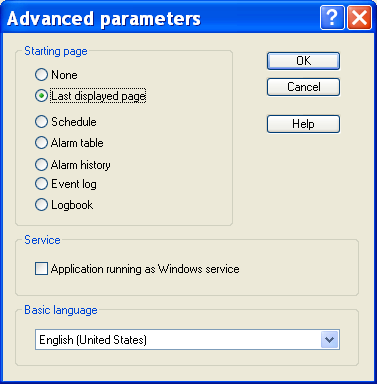
The Advanced parameters dialog box defines the advanced parameters of the software (starting page, user interface, running as service, basic language).
Starting page The displayed page at the start time of the software can be defined by selecting one of the options of this group. When the "none" option is sel ected, the starting screen does not display any window. Service Select this option to declare the software as Windows service. When this option is checked, the software is automatically registered as a Windows service. It will be then automatically launche d as service at the next system restarts and will be operational even if there is no open session. To unregister the software as Windows service, you have just to uncheck this option. (See § 8.8 "Alert as service").
Basic language Selection of the basic language, used to identify the data servers and tags in the external references of the DDE and OPC server of ALERT. It is also the reference language used for the messages and labels when they are not defined in a language. See § 8.4 "Multi-language management".
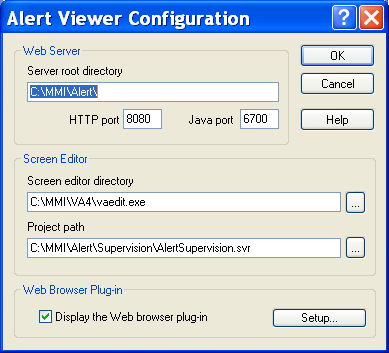
The dialog box Alert Viewer Configuration defines the parameters of the Alert vie wer module allowing pages to be displayed by the integrated Web server for a graphical visualization of alarms and supervised data (synoptic view, location map ...).
Web Server This group defines the parameters of the embedded web server.
-
The edit field Server root directory defines the basic directory of the Web server from which the displayed HTML pages are referenced. By default, it is the installation directory of the software.
-
The edit field HTTP port defines the IP port used by the http protocol of the Web server (8080 by default).
-
The edit field Java port defines the communication IP port used by the Java applets embedded in the displayed HTML pages (6700 by default). Screen editor directory This group designates the screen editor to use to create and modify the HTML pages to display and defines the project file that contains these pages.
-
The edit field Screen editor directory defines the directory where is located the program to use to edit the synoptic views (VAEdit.exe). Click on the adjacent button
to browse and select this directory.
- The edit field Project path defines the full path of the project file to use by the screen editor. Click on the adjacent button to browse and select this file. Web Browser Plug-in This group allows the activation and configuration of the Web browser plug-in.
- Check the box Display the Web browser plug-in to add a Web browser tab to the work space allowing the visualization of the synoptic pages generated by the Alert viewer module.
- Click on the Configuration... button to configure the parameters of the Web browser tab (Welcome page to display and tab label). See below.
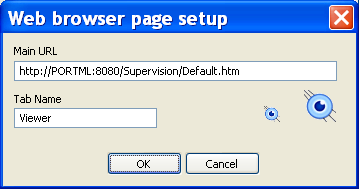
The dialog box Web browser setup defines the HTML page to display in the screen attached to the Web browser tab.
Enter in the field Main URL the reference to the hyperlink with the wished welcome page. Example: "http://localhost:8080\Supervision\Default.htm" This dialog box also allows the Web browser tab label to be modified ("Viewer" by default).
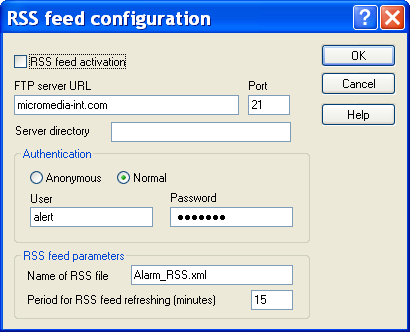
The dialog box RSS feed configuration defines the functionality of automatic notification of alarms by RSS feed.
The RSS feed functionality (Really Simple Syndication) allows dynamic information to be automatically received from a WEB server (news, alerts ...) by the mean of subscription of client applications (feed readers) . Information to transmit is written in a normalized XML file stored on a public WEB server.
When the RSS functionality of ALERT is activated, every time the alarm status is changed (set, reset or acknowledgment of alarms), an XML file is automatically generated in format RSS 2.0 from the current alarm table then uploaded by FTP to a pub lic WEB server . The
XML file is regenerated and periodically transmitted, every time the alarm status has been modified (set, reset, acknowledgment).
The o ption RSS feed activation validates/invalidates the functionality of alarm notification by RSS feed. The configuration of the RSS feed working includes the configuration of the FTP access to a public WEB server (accessible from any feed reader) and the definition of some parameters of the RSS feed. FTP access
- The field FTP server URL defines the URL label of the FTP server that will receive the XML file of the RSS feed.
- The field Port defines the port number used by the server for the FTP access ( port 21 by default).
- Specify, if needed, in the field Server directory, the full path of the directory where the XML file has to be stored, relatively to the root of the FTP server.
- Define the authentication parameters of the FTP access, specifying, for Normal type access, an identifier (User field) and a password. RSS feed parameters
- The field Name of RSS file defines the name of the XML file that will be generated to record the list of current alarms (Alarm_RSS.xml by default)
- The field Period for RSS feed refreshing defines the maximum time the XML file must be polled by the feed reader (in minutes).