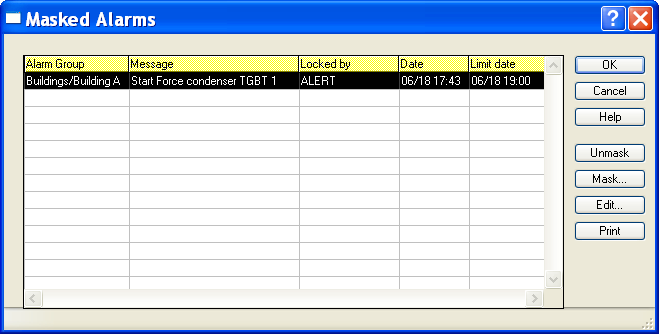
Masked Alarms
To mask or unmask alarm s or to visualize the list of masked alarm s, select the Alarm Mask/Unmask... command of the Operation menu, or click on the button . Note : an alarm or a group of alarms also can be masked and unmasked from any of the tag views associated with the branches of the supervision tree in the main screen (see § 4.6.1.4 "Tags").
This dialog box contains the list of alarms that are currently masked. List of masked alarms Each line of the list displays a masked alarm on 5 columns (by default): Group Functional group of the alarm. Message Alarm message associated with the event. Locked by Name of the operator who masked the alarm ("-" indicates a mask command performed by the supervised application). Date Date and time of the mask command. Limit date Limit date and time of the mask ("-" indicates an unlimited mask). This list can be customized and sorted1. It is possible to add other columns:
1 This list can be entirely customized (selection of columns to display, order, width and title of columns, alignment of the title or the column content). To perform this customization, position the mouse cursor on the column of which one wants to modify the presentation and click on the right button of th e mouse. Select then the adequate command in the displayed contextual menu. The new configuration is automatically saved to be restored for the next sessions. The contextual menu also allows to configure the printing format of the list and to export the l ist to the clipboard or a file, with a configurable format. The width of each column can be visually adjusted by positioning the mouse cursor on the concerned size bar of the title line, then clicking and dragging the bar to get the wanted size.
Station Name of the station attached to the alarm. Code Numeric code of the tag. Reference Reference of the tag. On-call group Name of the on-call group attached to the alarm. C Indicates that a comment exists (*) about the masking action (click on the Edit button or double-click on the line to read the comment). Comment Comment about the masking action. Treatment of masked alarms The masked alarms do not trig calls and are not logged in the alarm history. If a masked alarm is activated, it results in a simple message of type "EVENT" in th e event log. The masked alarms normally do not appear in the alarm table. To display in the alarm table the masked alarms that are active or not acknowledged, uncheck the Unmasked filter in the status bar of this table. A limit date and time can be define d when masking an alarm. In this case the alarm is automatically unmasked at the end of the defined time. Masking an alarm or a group of alarms To mask an alarm or a group of alarms, click on the Mask... button. This action displays the list of no masked alarms. To mask an alarm or a group of alarms, select the desired alarm or the whole subset defined by the filter options Station (to select a station), On Call (to select an on -call group) or Group (to select a tag group), check the Selected list option then validate by the OK button.. After the selection of an alarm or a group of alarms, a dialog box is displayed to define the limit date and time of the mask and possibly type a comment (see § 6.17.1 "Masking / Unmasking alarms" below). The mask command will be taken in ac count only when exiting of the Masked Alarms dialog box by clicking on OK. Unmasking an alarm To unmask an alarm, first select it in the list (by clicking on the correspon ding line), then click on the Unmask button. This button is validated only when an alarm is selected in the list. Lookup, edition of the comment, modification of the limit time To consult the masking comment of an alarm or modify it or to change the limit time of an alarm mask, select the alarm in the list (by clicking on the corresponding line), then click on the Edit... button (see § 6.17.1 "Masking / Unmasking alarms " below ). This button is validated only when an alarm is selected in the list. Printing To print the list of masked alarms, click on the Print button. The printer which will be used is the printer selected by the Print setup... command of the File menu. If no setup has been performed, it is the default printer.
This list can also be sorted according to the increasing or decreasing order of each of its columns. To do this, click on the title of the wanted column: an arrow will indicate the increasing sense of the sorting. Click again on the title of the column to reverse the sort order (reversed arrow). To perform a fast research for a value in the list, select the research column by clicking on its title, then scroll the list with the scroll bar: a "bubble" displays the content of the selected column for the 1st line of the list corresponding to the scroll bar position.
To define the printing format of the list, click with the right button of the mouse in the list of alarms, then select the Printing... command in the displayed contextual menu. Exportation The list of masked alarms can be exported in a file or in the clipboard. To perform this operation, click in the list with the right button of the mouse, then select the Export... command in the displayed contextual menu. In the displayed dialog box, choose columns to export, the expo rt format (header, separator) and the destination (file or clipboard).
Masking and Unmasking of alarms can be performed by using the command Alarm masked in the contextual menu associated with the tag views of the main screen (se e §
4.6.1.4 "Tags").
The list of masked alarms can be displayed by selecting the Alarm Mask/Unmask... command of the Operation menu, or clicking on the button . See above.
Begin date & time Define here the begin date and time of the mask. At this time th e alarm will be automatically masked. The choice Now indicates that the alarm is immediately masked, after validation by clicking on the OK button. End limit date & time Define here the end limit date and time of the mask. At the end of this time the alarm will be automatically unmasked. The choice No limit indicates that the alarm is masked without time limit. It will be masked until a user comes to explicitly unmask it.