User Statuses
This list is disabled for the definition of the profile "without user" (no authorized command).
- Button Default Click on this button to reinitialize the selected profile with the default configuration associated with its access level.
- Modification of the profile name To modify the name of the selected profile, directly type its new name in the Class Name field, then validate by clicking on the OK button.
- Creation of a new profile To create a new profile, select the profile to be derived, enter a new name then click on the Add button.
- Deletion of a profile To delete a profile, select the profile in question then click on the Delete button
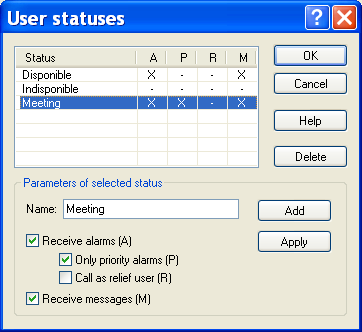
To define and configure the different used availability status of operators, select the " User statuses..." command in the "Configuration" menu.
The list presents the defined user statuses. The two first statuses ("Available" and "Unavailable") are automatically created and cannot be deleted. The columns A, P, R and M define the status characteristics in accordance with the corresponding check boxes below the list. To create a new status, type its name in the "Name" field then define its characteristics:
- Receive alarms (A) : when this option is not checked, the operators defined with this status will not be called to process the alarms, some is their on -call state. In this case, the two next options are grayed.
- Only priority alarms (P) : when this option is checked, the operators d efined with this status will only be called for priority alarms.
- Call as relief user (R) : when this option is checked, the operators defined with this status will only be called as relief operators to process the alarms that concern them.
- Receive messages (M): when this option is not checked, the operators defined with this status will not be proposed to receive service messages. To validate the entry and create the new status, click on the "Add" button. To modify an existing status, select it in the list, modify its name or its characteritics in the corresponding fields then validate the entry by clicking on the "Apply" button. To delete an existing status, select it in the list then click on the " Delete" button. This action is not enabled for the two first statuses of the list.