Saving / Restoring Configuration
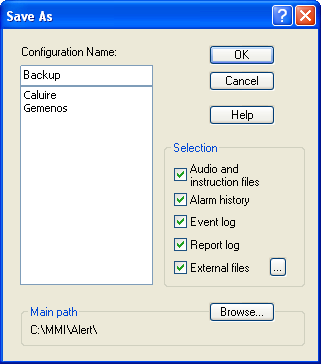
The Save As... command of the File menu is used to save the whole configuration in a compressed file (ZIP format) with a suffix ".abf".
Configuration name In order to save the current configuration, type a name in the edit field above the list or select an existing name in the list (to replace a saved configuration). Selection When saving a configuration one can include or exclude some parts of the configuratio n and recorded operational data: Audio / instruction files Wave files and text files attached to the tags of the supervision list. Alarm history Save the alarm history. Event log Save the event logs. Report log Save reports recorded in the logbook. External files Save additional external files . To consult or define the lit of external files to save, click on the (see $ 5.22.1.1 below). Main path Name of the basic directory in which the configuration files will be saved. By de fault, it is the basic directory of the Alert application. This directory can be chosen on a computer of the network. Click on the Browse... button to select another basic directory.
The list of external files to save when requiring a specific backup (command "Save As..." from the menu "File") or defining a periodic backup (see $ 7.1 "General options") is defined by the following dialog box:
The field " Name of the saving file " defines the name of the text file that will contain the list of files to save. For specific backup, the name is "ExtFiles.lst" and cannot be changed (edit field grayed). For periodic backup, the default name is "ExtFiles_Backup.lst" and it can be changed. Click on the "Add files..." button to select one or several files to add to the list. Click on the "Add a directory..." to select a directory to add to the list. Click on the " Remove" button to remove the selected files and/or directories selected in the list.
Note:
The files and directories located in the parent path of the application ("C: \MMI" by default) will be recorded as relative path to the parent directory, allowing them to be rest ored in another path if the application is moved. The files and directories located outside the parent path of the application are recorded with their absolute path. They will be restored in the same place, even if the application has been moved.
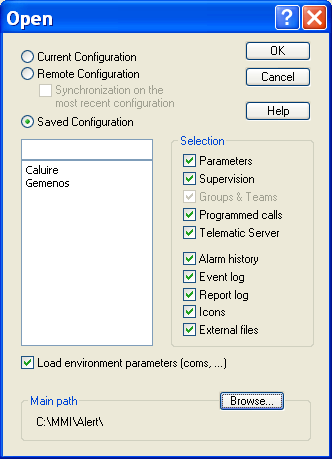
The Open... command of the File menu restores a configuration.
Configuration to restore
One can restore:
- The actual configuration , to reinitialize for example the list of t he supervised tags when the configuration file of the supervision (taglist.xml) has been modified by an external application,
- The remote configuration (only in redundant mode) to reinitialize the configuration from the redundant station, Select the option Synchronization on the most recent configuration to only retrieve the data that are more recent on the redundant station. In the opposite case, the whole of the selected parameters will be copied from the redundant station.
- A saved configuration, by select ing the configuration to restore in the list below. It is possible to restore a saved configuration from a directory different from the Alert directory by changing the basic directory. Selection The restoration can be partial by selecting some of the following subsets: Parameters Parameters of the application. The environment parameters and the configuration files (".ini") of the selected mediator
and used communication drivers are restored only when the option load environment parameters... is selected. Supervision Configuration files of the supervision (taglist.xml, taggrouplist.xml) and the text and audio messages associated with. Groups & Teams Configuration file of the on call management (userlist.xml, grouplist.xml, teamlist.xml, holiday.xml), group s chedules (groupschedxxx.xml). Option forced with the "Supervision" option. Programmed calls Configuration file of programmed calls and synchronization calls with the remote stations (progcalllist.xml). Telematic server Configuration file of the server application (Alertpro.ini). Alarm history Restore all the alarm history. Event log Restore the event logs. Report log Reports recorded in the logbook. Icons Icons defined in the tree of the main screen. External files: Additional files (see $ 5.22.1.1 above). Load environment parameters This option allows the restoration of the application parameters to be limited to the parameters independent of the environment. When this option is not checked, the following parameters are not restored: selection and configuration of communication ports. communication drivers Windows control (general options) redundancy parameters (general options) selected mediator (general options) DDE trace (DDE options) external applications activation of voice synthesis Load message processor configuration Check this option to load the configuration of the message processor of the redundant station (parameters and scripts). This option is displayed only for the restoration of a remote configuration. Main path Name of the basic directory in which the configuration files are saved. By default, it is the basic directory of the Alert application. This directory can be chosen on a computer of the network. Click on the Browse... button to select another basic directory.
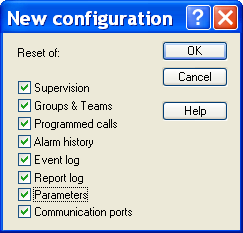
The New... command of the File menu reinitializes the current configuration (configuration files of supervision and on call management are cleared), the current environment parameters being unchanged.
Reset of Select the options corresponding to the subsets to reinitialize: Supervision Erase the list of supervised tags. Groups & Teams Reset the on-call organization (users, groups and teams) Programmed calls Reinitialize the c onfiguration of programmed calls and synchronization calls with the remote stations. Alarm history Erase all the alarm history. Event log Erase the event logs. Report log Remove the reports recorded in the logbook. Parameters Reinitialize the general parameters of the application. Communication ports Reset the configuration of used communication ports. The unselected subsets will remain in the state of the current configuration.