On Call Program
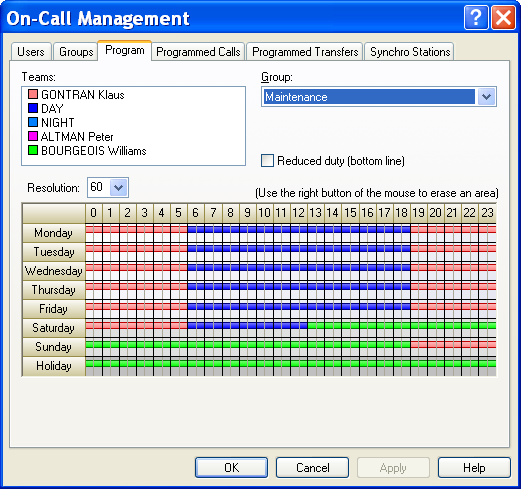
To configure the weekly on call program of each defined group, select the " On call management..." command in the "Configuration" menu, or click on the button . On the displayed dialog box, select the "Program" tab. This dialog box also can be directly called from the contextual menu displayed when clicking with the mouse right button on the icon of an on-call group in the tree of the main screen then selecting the command "Program" (see § 4.6.1.9 "On-call groups").
This dialog box displays the weekly on call pro gram defined for the group selected in the "Group" drop down list. Group Select in this drop-down list the on-call group which one wants to visualize and configure. The selection of a group validates the modifications which were possibly made on the group selected beforehand. Teams List of teams attached to the group selected in the drop -down list Group. Each team is represented by its color and its name. To assign a team to the on call program of the group, select it in this list, then, using the mouse, trace on the weekly schedule the rectangular area corresponding to the wished on
call period (over one or more days). The corresponding rectangle is filled with the color of the team. Option Reduced duty When this option is checked, the periods traced on sc hedule are qualified as on call period in reduced duty (call only for priority alarms). These periods are traced on the low part of the day rows. Resolution Resolution of the displayed schedule, in minutes (minimum time slots). Schedule On call program of the group. This schedule defines in graphic form the weekly assignment of the teams of the selected group. The teams programmed for each day of the week are represented by lines of the color of the team, on the high part of the day rows for the teams in normal duty (unconditional call), on the low part of the day tows for the teams in reduced duty (call only for priority alarms). To assign a team to the on call program of the group, select it in the team list, then, using the mouse, trace on the weekly s chedule the rectangular area corresponding to the wished on call period (over one or more days). Note: the public holidays are defined in the general on call schedule by clicking in the schedule on the first column of the line corresponding to the desired day.