Selection of an External Tag
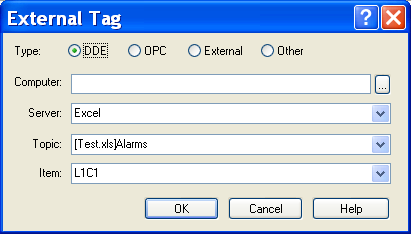
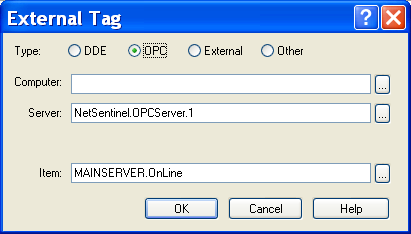
This dialog box is used to browse and select an external tag to supervise. It can be called to define an external reference of tag, by selecting the command " Add a tag" in the contextual menus attached to the " Tags" tree of the main screen or its associated views. It also can be called t o modify an external reference, by selecting the command "Definition" in the contextual menu attached to the tag views. Type Type of the server containing the tag to supervise:
-
DDE : tag issued from a DDE server application
-
OPC : tag issued from an OPC server application
-
External : tag issued from a communication driver (logical or analogical I/O)
-
Other : other tag, updated by an external application (or by a specific mediator) Computer Name of the computer where is located the server which contains the tag. If the server is located on the local station, this field must be empty.
Enter the name of the computer (or its IP address) or click on th e button on the right of the field to select a computer of the network. This field is only displayed when the type of the server is DDE or OPC. It is not modifiable if the dialog box is called from a <data server name> view of the main screen. Driver Selection of the acquisition driver. Only the installed communication drivers which have capabilities of input acquisition (Advantech, ...) are proposed in the list. This field is only displayed when the type of the server is External. Server Designation / Selection of the DDE or OPC server. DDE Server: Enter the name of the DDE server or select it in the dropdown list. Only the active DDE servers are proposed in the list (if they properly answer to the requests for DDE server enumeration) or th ose which have been prior registered for NETDDE sharing. OPC Server: Enter the name of the OPC server or click on the button on the right of the filed to select one of the OPC server registered on the computer designated in the field Computer. This field is only displayed when the type of the server is DDE or OPC. It is not modifiable if the dialog box is called from a <data server name> view of the main screen. Topic Designation / Selection of the DDE topic or external module. DDE Server: Enter the name of the DDE topic or select it in the dropdown list if the DDE server designated in the field Server proposes a list of topics. Driver: Select in the dropdown list one of the subsets (card, module) proposed by the driver designated in the field Driver. This field is only displayed when the type of the server is DDE or External. It is not modifiable if the dialog box is called from a <data server name> view of the main screen. Item Designation / Selection of the tag. DDE Server: Enter the name of the DDE tag or select it in the dropdown list if the DDE server designated in the field Server proposes a list of tags for the topic designated in the field Topic. OPC Server: Enter the name of the OPC tag or click on the button on the right of the field to browse t he server designated in the filed Server and running on the computer designated in the field Computer then select a tag. Driver: Select in the dropdown list one of the tags proposed by the driver designated in the field Driver, for the subset designated in the field Topic. Other: Enter the name of the tag, as it will be referred to by the external application (or the mediator) in the alarm commands.
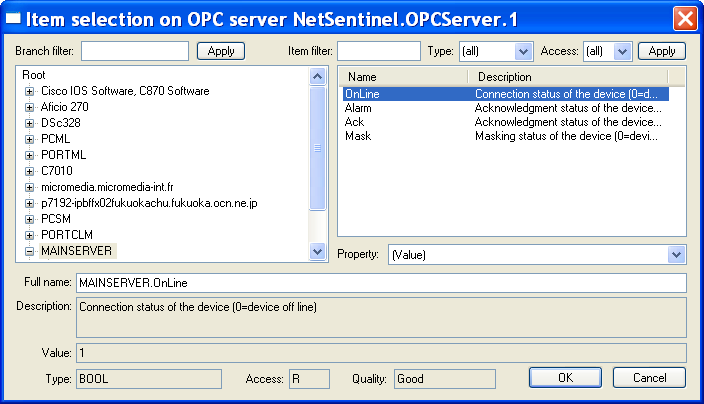
To define an OPC tag, one can directly browse the database of the OPC server which contains the variable . This feature is only available with OPC servers that implement this service (IOPCBrowseServerAddressSpace interface).
The left list displays a tree view of the vari ables proposed by the selected OPC server . To open a branch and browse its sub tree, click on the symbol displayed on the left of the branch name. The right list displays the variables contained in the branch selected in the tree . The dropdown list Property displays the properties defined for the variable selected in the list . By default, the Value property is selected (value of the variable). When a variable is selected in the right list, the selected property is automatically read from the OPC server. The read result is displayed below the list:
- Value of the property
- Type of the property (I1 ,UI1 ,I2 ,UI2 ,I4 ,UI4 ,R4 ,R8 ,CY ,DATE ,BSTR ,BOOL ...)
- Authorized access (R, W, RW)
- Quality of the variable reading (Good, Bad, Not connected ...). The controls displayed on the top of the dialog box allow the list of the proposed branches or variables to be limited according with the defined filters (and filtering performed by the
OPC server):
-
Branch filter: restricts the branches displayed in the left list to those whose name corresponds to the typed string (can include the generic characters "*, "?"). Click on the adjacent Apply button to refresh the tree in accordance with the defined filter.
-
Item filter : restricts the variables displayed in the right list to those whose name corresponds to the typed string (can include the generic characters "*, "?"). Click on the adjacent Apply button to refresh the list in accordance with the defined filter.
-
Type: restricts the variables displayed in the right list to those whose type corresponds with the selected type . Click on the adjacent Apply button to refresh the list in accordance with the selected type.
-
Access: restricts the variables displayed in the right list to those whose access mode corresponds with the selecte d access mode. Click on the adjacent Apply button to refresh the list in accordance with the selected access mode.