Programmed Calls
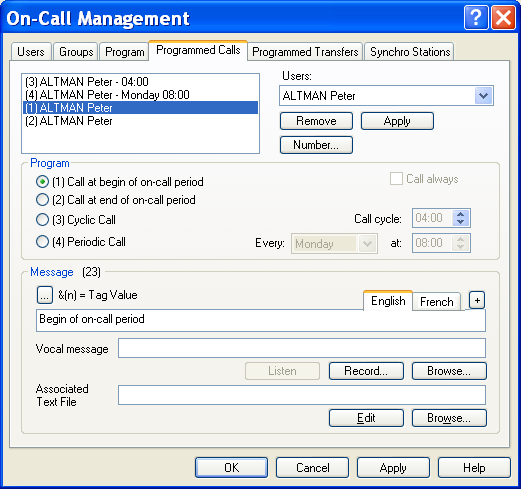
To configure the programmed calls, select the " On call management..." command in the "Configuration" menu, or click on the button . On the displayed dialog box, select the "Programmed calls" tab.
The list on the top of the page displays the programmed calls for the user selected in the Users dropdown list. If the selection is "(all)", the list displays the programmed calls for all the users. In this case, it is not possible to create a new programmed call ( Add button grayed). A programmed call is defined by a line containing: the call type: (1) for a call at beginning of on-call period, (2) for a call at end of on-call period, (3) for cyclic call, (4) for periodic call. the name of the user to call, possibly followed by the identifier in the dial number directory of the user of the specific number to call (under the form <Id>), the period of the cyclic call or the day and time of the periodic call. To add a new programmed call
-
Select the concerned operator in the drop down list.
-
Select the programmed call type: call at the beginning of on -call period, call at the end of on-call period, cyclic call or periodic call.
-
In case of a cyclic call, define the call cycle. In case of a periodic call, select in the Every drop-down list the day of the call (a specific week day or every days), then define the call time for the selected day.
-
Type the text message to send (see below).
-
Finally click on the Apply button. If one wishes to designate a specific dial number for a programmed call, select the call in question in the list of programmed calls, click on the Number... button, then, in the displayed dialog box, choose the option "selected number" and select the number to call. The default option "programmed number" will use the active dial number for the user at the time of the call. For a given user, only one cyclic call can be defined. But it is possible to define several periodic calls for the same operator. To remove a programmed call Select it in the programmed calls list then click on the Remove button. To modify a programmed call Select it in the programmed calls list, modify the wanted parameters then click on the Apply button. Remark: if the call type or the period of a periodic call is changed, a new programmed call is created. Option Call always This option indicates, when checked, that the cyclic or periodic calls will be performed whatever is the on -call status of the concerned user. If it is not checked, the call will be performed only during the on call periods of the user. Message Text message to send during the programmed call (0 to 512 characters). The number of characters is displayed above the edit field.
- Tag value The message can contain variable f ields. To incorporate in the message a tag value of the supervision list, click on the button . In the displayed dialog box, select the wished tag then validate. The numerical identifier of the tag is inserted in the edit field at the current cursor position, under the form: &(tag id).
- Vocal Message Name of the vocal file that will be transmitted to the operator called by telephone. The vocal message can be recorded ( Record... button) or selected it among the prerecorded messages ( Browse... button). If the Text To Speech option has been installed, and if this filed is empty, the vocal message will be automatically generated from the text message defined above.
- Associated Text File Name of the text file associated with the message. This file is used to transmit some further information by fax or email. It can be defined as "contextual" and incorporate the value of tags of the supervision list.
Click on the Edit button to directly type the text to transmit or on the Browse... button to browse and select an existing text file on the disk. The information to transmit (text message, vocal message, text file) can be defined in various languages, the information really transmitted being automatically selected according to the language of the recipient operator. The list of tabs displayed above the message edit field, allows the selection of the typing language. The proposed languages are those which are already used (user interface language, language of defined operators). To add a language to the proposed list, click on the button on the right of the field then select the wished language in the displayed list. To remove one of the proposed languages, click on the same button, select the language to remove then click on the "Mask" button.