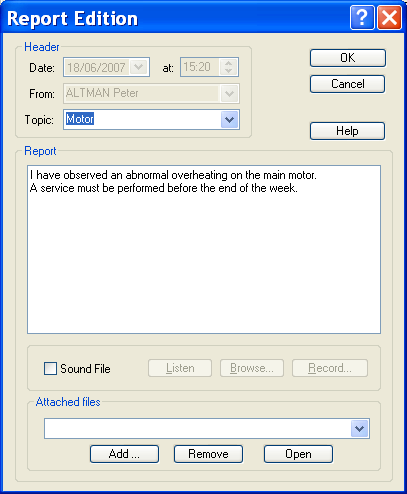
Editing a Report
Click on the Delete button to delete a report selected from the list of reports. When a report is deleted, the associated audio report, if it exists, is also deleted. Click on the Print button to print the logbook corresponding to the date and to th e selection author/topic done. The printer which will be used is the printer selected by the Print setup... command in the File menu. If no setup has been performed, it is the default printer.
To edit a report, select the display of the logbook, then click on the New button to create a new report, or Edit to modify or complete an existing report (after having selected it from the list of reports).
If the "database export" o ption is validated by the software license, a report can be attached to one or more alarms. An alarm report can be edited (creation, consultation, modification) from the alarm table (see § 6.2.5), from the alarm history (see § 6.3.6), or from any view of the main screen displaying tags in alarm, by using the associated contextual menu (Report command). Header When creating a new report, this last is automatically time stamped and signed with the name of the user who creates it. This information (date, time and author) can be modified.
Only the author of a report can then re -edit it for modification, on the condition that the right "report edition/modification" of the logbook is validated for his user profile. The buttons and are only displayed for reports attached to an alarm and when several reports are attached to the same alarm. They allow the reports attached to a same alarm to be browsed. One can attach the report ( at its creation or at a following re -edition) to a topic, this last becoming a search criteria for consultation of the logbook. The label of the topic can be selected from the list of existing topics or directly entered into the edit field (the new name is automatically added to the list). Report The written report is edited under the form of a note. The passage to the next line is automatic. It can be forced manually by pressing the "Enter" key. A vocal message can be associated with a report. By clicking on the Browse... button one can browse files for a "sound" file containing a pre-recorded audio message. By clicking on the Record... button, one directly records the audio message. The file name is automatically created, under the form "Myymmxxx.WAV", "yy " representing the year, "mm" the number of the month and "xxx" being a numerical code from "000" to "999". Click on the Listen button to listen to the audio message. Attached files One or several files can be attached to the report. The Attached files dropdown list contains the list of files attached to the report. Click on the Add... button to add a file to the list of attached files. Click on the Remove button to remove the selected file from the list of attached files. Click on the Open button to open t he file selected in the list of attached files. The "Open" action is defined by the association that has been done for the type of the selected file (following the file extension).