Remote Control
This driver can be used either to send common emails or to transmit messages to pagers or mobile phones (smart messages) via an email server. It can also be used to create Alert reports. The email report sender must be one of the Alert operators with his email address as his active call number. In the case of a common email, the receiver address is specified in the "number" field associated with the "Email" driver in the form of the c oncerned user. The message body that will be transmitted will contain the alarm or service message followed by the contents of the text file eventually attached. Depending on the message type (alarm or service), the associated subject and sender will be:
- Alarm message: the sender contains the title of the Alert windows (ALERT by default); the subject can be formatted with fields which are dynamically replaced by their value.
- Service message: the sender is the name of the logged operator; the subject contain s a configurable text. In the case of an email destined to a pager or mobile phone, the receiver address specified in the number field associated with the "Email" driver in the form of the concerned user must contain as header one of the following strings:
- "\" if the information that designates the end -receiver is contained in the email address,
- "<mobile number>" if the end -receiver has to be designated in the email subject, with <mobile number> designating the mobile address (or pager address) such as i t has to be specified in the email subject. In this case, only the alarm or service message is transmitted (no text file). In the number field associated with the "Email" driver in the form of the concerned user, it is possible to precise email CC recipien ts. The format is the following: main_recipient(copy_recipient1,copy_recipient2,...) The email driver can be configured with several Providers. Each connection that can be used on the system can be managed by a sub-driver of the email driver. To configure the parameters of the "Email" driver, select in the Communication dialog box (on "Drivers" tab) the line Generic Email or directly choose the sub -driver of the wished connection, then click on the Properties... button. In the case of the generic driver "Generic email", it is possible to add a new sub -driver or to delete a defined sub -driver. To create a new driver, click on the Add button. To delete a sub-driver, select it in the installed drivers list then click on the Remove button. After having created a ne w sub -driver, define its properties then validate by clicking on the OK button. In the case of sub -drivers, it is only possible to modify the parameters of the selected driver.
Appendix
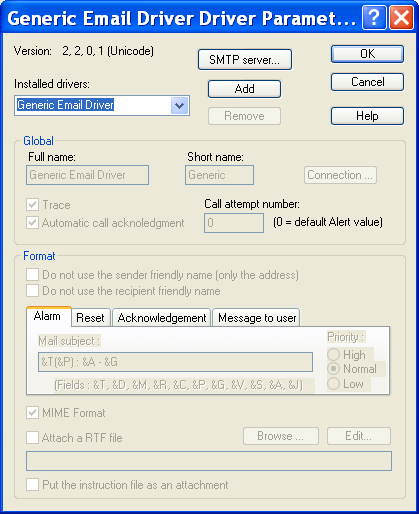
Global This control group defines the following parameters:
-
The Full Name field gives the name of the sub-driver that will appear in the driver list.
-
The Short Name field gives the name of the driver in the configuration file (after creation, it can"t be modified).
-
The Trace option allows the recording in the event log of the messages sent to the email server.
-
The Automatic call acknowledgment option, when checked, avoids having to call back Alert to confirm the email reception. If this option is not checked, the mail is sent with a request for a receipt notification . The call is acknowledged when the receipt is received by Alert or if the user call back Alert.
-
The value of the Call attempt number field indicates the number of call attempts for the driver in case o f failure. If the value is 0, le number of attempt will be the one defined in Alert call options. Format This control group defines the email format options. The two first check boxes validate or not the indication of the friendly name of the sender and recipient in their address. The tabs below designate the type of concerned message (Alarm, Reset Acknowledgment or User message) to modify the parameters that are specific to each type of message:
-
The Mail subject field contains the subject of the email to u se when sending the message (according to the selected tab). The subject can contain tags that will be dynamically replaced at sending time. These tags are the following: &T message type (alarm, reset or acknowledgement) &D alarm date and time &M alarm message &R alarm name &C numeric code &P alarm priority &G alarm group &V alarm value &S station where the alarm occurred &A alarm call group &J list of attached files
-
The Priority selection defines the priority level of the message (according to the selected tab). The MIME Format check box validates or not the MIME format coding of the message. When this box is checked, the following options are available:
-
The option Attach a RTF file allows a formatted file for alarm description to be attached to the mail. The attached file is formatted following a model file defined in the edit field. To choose the file, click on the Browse button. The model file is created in RTF format and contains references to variables that will be dynamically replaced during the mail transmission. These references are: &TO& Report receiver &SUBJECT& Report subject &STATION& Emitting station name &DATE& Current date at the fax transmission &TIME& Current time in format "HH:MM:SS" &PAGES& Number of page in the report These references can be used several times. The font and position of the values will be those of their references.
Other references can be used in the file body:
&BODY& Begin of the structure to repeat for each alarm &ALDATE& Date of the alarm &ALTIME& Time of the alarm in format "HH:MM:SS" &ALMESS& Alarm message &ALINSTRUC& Instruction file that will be inserted in the fax &ENDBODY& End of the structure to repeat for each alarm Inside the body, the references can be repeated as often as wished.
- The option Put the instruction f ile as an attachment gives the possibility of attachment of the instruction file to the message rather than inserting its content in the message body.