Toolbar Customization
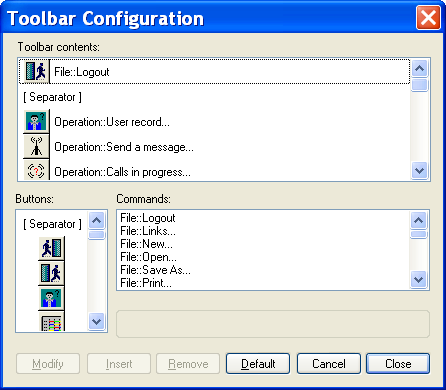
The tool bar supporting the command buttons can be customized by the addition or removal of buttons. To access to the configuration of the toolbar, select the Toolbar... command of the Configuration menu.
The list Toolbar contents shows the buttons displayed in the current toolbar, with the associated menu command (eg: File:Logout = "Logout" command from the "File" menu). The "[Separator]" lines correspond to a half-button space on the tool bar.
- To remove a button Select the desired button in the list Toolbar contents, then click on the Remove button.
- To modify a button Select the desired buttons in the list Toolbar contents, then choose the new button from the list Buttons (it can be the same one) and the command associated with it from the list Commands. Click on the Modify button.
- To insert a new button Select in the list Toolbar contents the button before which one wants to insert the new button. Then choose the new button from the list Buttons and the command to be associated with it from the list Commands. Click on the Insert button. The Default button restores the standard configuration of the application.