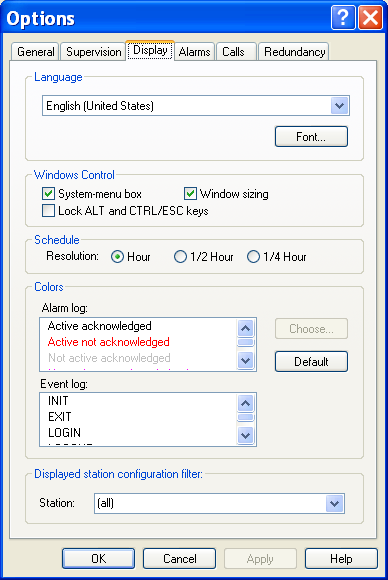
Display Options
To configure the display options, select the Options... command of the Configuration menu, then, on the displayed dialog box, select the Display tab.
Language
-
Selection of the language of the user interface (menus, dialogs, messages, help, etc). This is also the language used to display and define the multilanguage labels (See § 8.4 "Multi-language management"). The defined language will be taken into account from validation by clicking the OK button.
-
Click on the Font... button to select the font to use in the user interface of the application (font, style and size). Windows Control
-
The System menu box option validates the display of the "system menu" box on the left of the title bar of the main window. This option will have effect only after restarting the application.
-
The Window sizing option validat es the display of the sizing controls of the main window (buttons to minimize and maximize windows, sizing frame). If this option is not selected, the window is full screen and can be neither adjusted nor moved. This option will have only after restarting the application.
-
The Lock ALT and CTL/ESC option validates the locking of the Windows commands to switch the tasks (ALT/TAB, CTRL/ESC). This option forbids any user to switch to another Windows application. Schedule
-
Selection of the resolution used in the on call schedule. When the resolution is decreased (1/4h -> 1/2 h -> 1 hour), a confirmation message is displayed to warn the operator that the schedule is likely to be modified (extension of time periods not aligned for the new resolution). Colors
-
Customization of colors representing the types of events in the event log and the state of alarms in the alarm table. Select an alarm state from the Alarm log list or a type of event from the Event log list then click on the Choose... button. Select the desired color in the displayed palette. The Default button restores the default configuration of the colors associated to alarm states and events. Displayed station configuration filter
-
Selection of the station to view. This selection is only enabled when the local station (first station) is defined as a "Centralization station". Only the "ALERT" stations (stations defined with a user having the station name and associated with an ALERT communication driver) are proposed in the list. The choice "(all)" gives access to the data of all stations. If a station is selected, the name of the selected station will be displayed in the status bar on the bottom of the main window, and only the data of this station will be accessible: configuration data for on -call management an d supervision, on -call schedule, alarm table, alarm history and event log.