ALERT - License
Overview
License activation differs based on whether you use a USB dongle or a software license key.
Hardware License Key (USB)
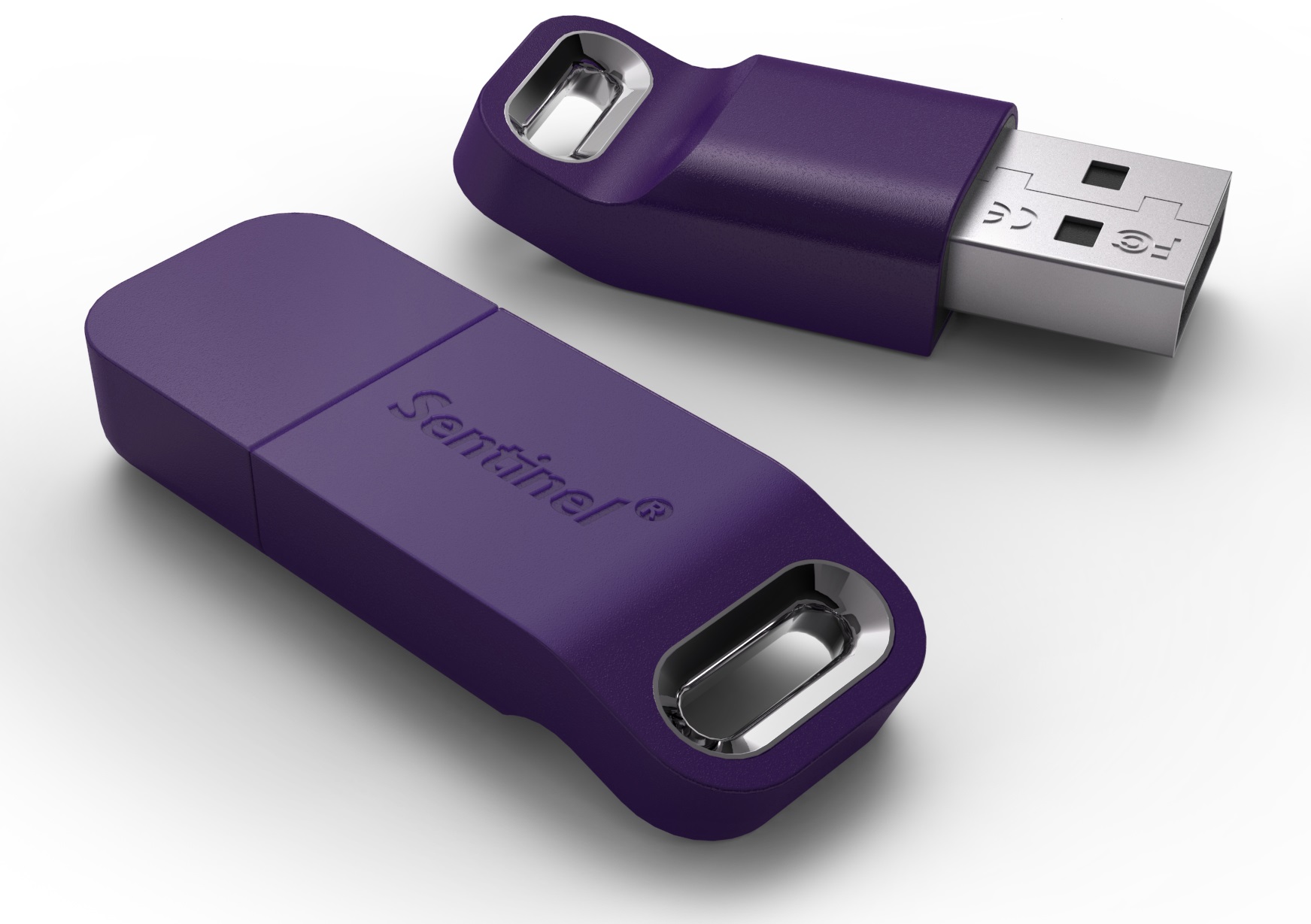
After installing ALERT, connect the USB dongle. Windows automatically recognizes and configures it.
Launch ALERT through Start menu > Micromedia > Alert 4.0.
If a license file was included on the installation media, it is already copied to the correct directory. Without a license file, ALERT launches in demo mode.
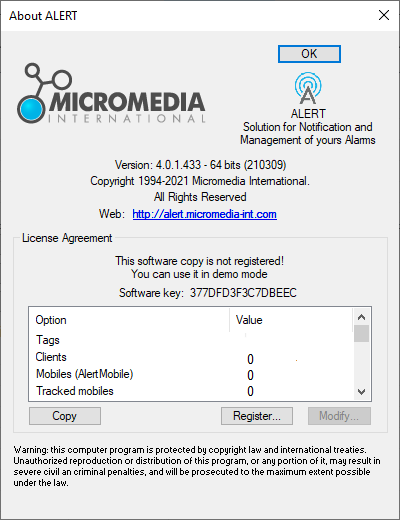
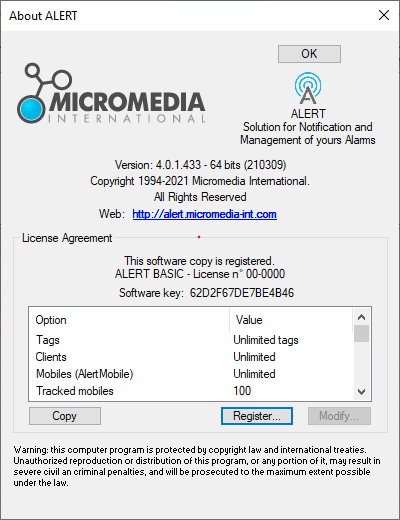
Once you obtain your .lic file, click Register... to add it (administrator privileges required). The file defines which options are enabled.
If the dongle is not recognized after connection, refer to the article "USB protection key not recognised."
Software License Key
No USB dongle is needed. ALERT generates a unique code from your computer's hardware components.
At startup, ALERT displays a dialog box. Double-click the software key to copy it, then send this number to Micromedia to generate your associated .lic file.
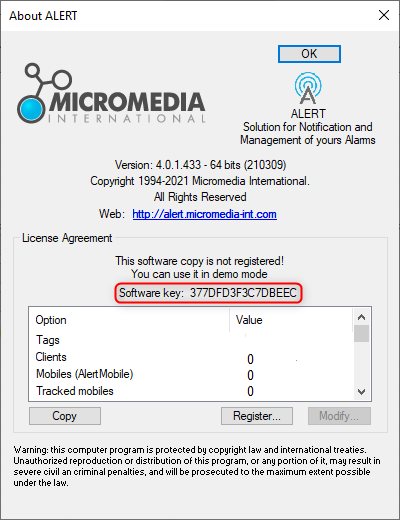
Once received, click Register... and add the file. Administrator privileges are required.
License Renewal
During renewal, Micromedia sends a new .lic file. Load it via Help > About ALERT > Register. Select the new file matching your key and confirm the privilege escalation prompt.