ALERT - Installation
Overview
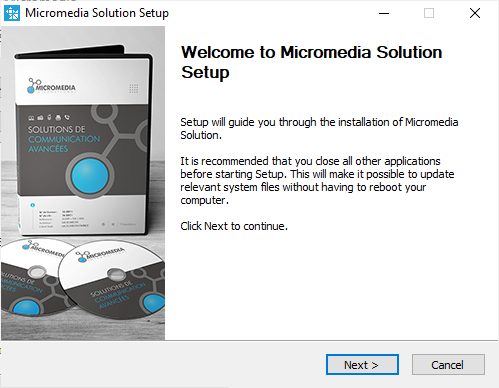
The installation process begins by plugging in the installation USB stick. The setup program SETUP.EXE will either launch automatically or needs to be started manually from the USB root directory.
Installation Steps
1. Initial Prompt
Plug in the installation USB stick. If the setup program does not start automatically after a few seconds, launch SETUP.EXE from the root of the USB stick.
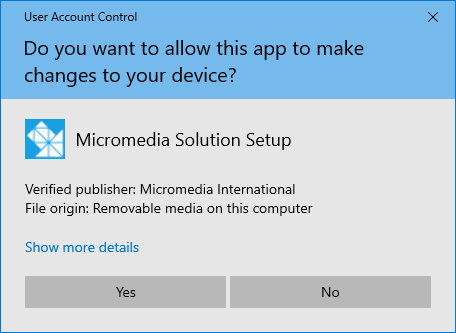
Click Yes when prompted to proceed.
2. Language Selection
Several languages are available. This choice only concerns the current installation — the software language can be customized after setup completes.

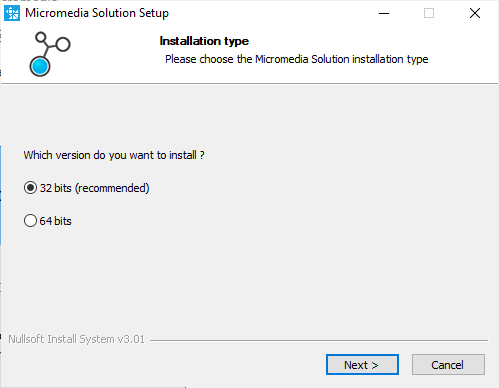
3. Version Type (32-bit vs 64-bit)
Keep the default 32-bit selection unless you have specific requirements, even on a 64-bit Windows system.
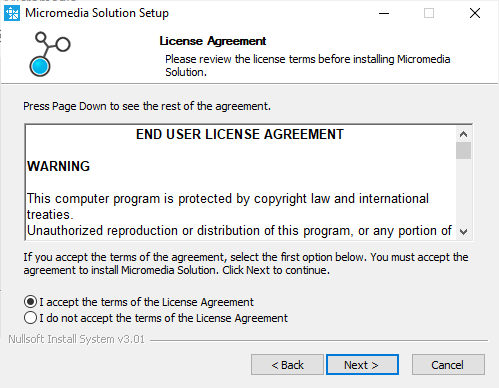
4. Software Selection
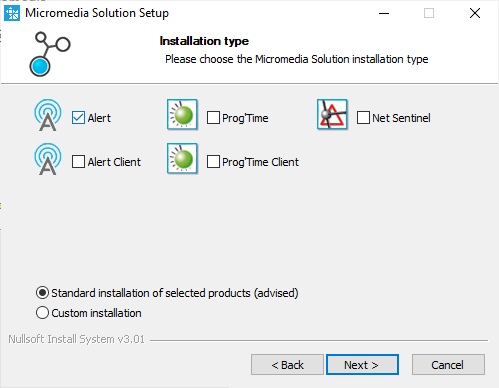
Check the box for Alert and use the default installation option. This installs all modules including drivers, mediators, and plugins. Individual elements can be activated within the software afterward.
5. Installation Folders
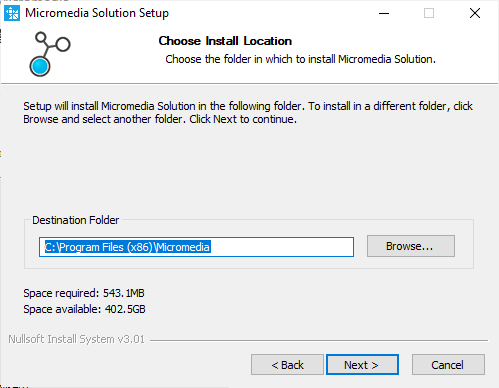
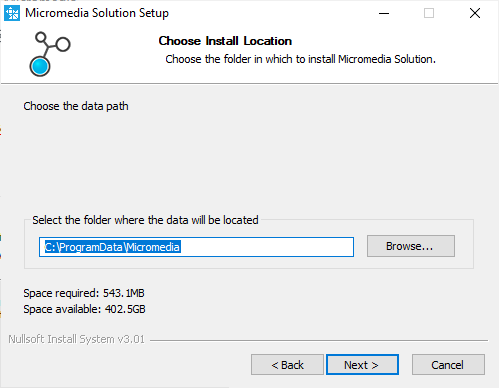
Two directories are required during installation:
| Folder | Purpose | Default Path |
|---|---|---|
| Binaries folder | Programs and modules | C:\Program Files (x86)\Micromedia |
| Data folder | Configuration files | C:\ProgramData\Micromedia |
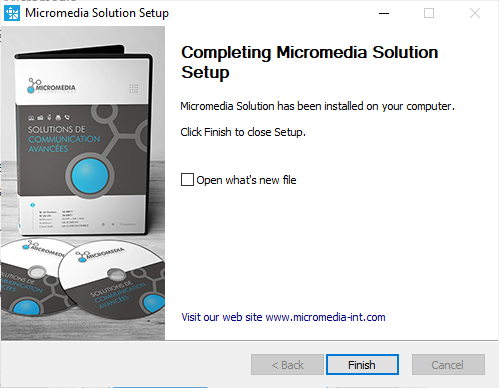
Next Steps
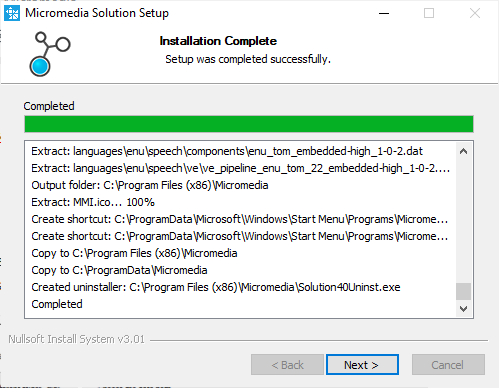
After installation completes, proceed to register your license and launch ALERT.