Tag Configuration
Once the OPC UA data server is configured, you can add tags to monitor values from the OPC UA server.
Adding a Tag
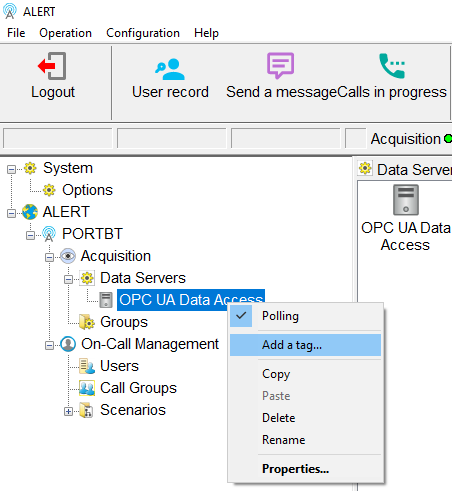
Right-click the OPC UA Data Access data server in the Alert tree and select Add a tag....
The Tag Definition dialog opens.

Click the ... button next to the Data path field to browse the available tags on the OPC UA server.
Browsing Tags
The Tags browser opens and displays the tag tree exposed by the OPC UA server.
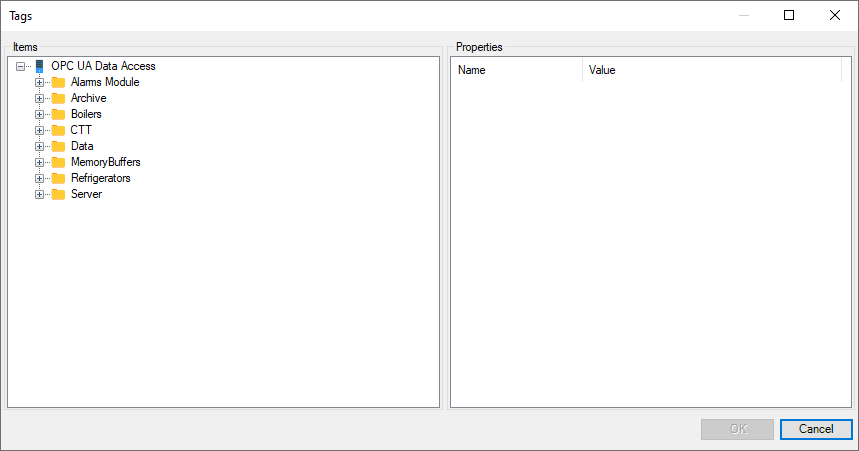
Expand the tree to navigate to the desired tag. The Properties panel on the right shows the tag details (access rights, data type, current value) as you select items.
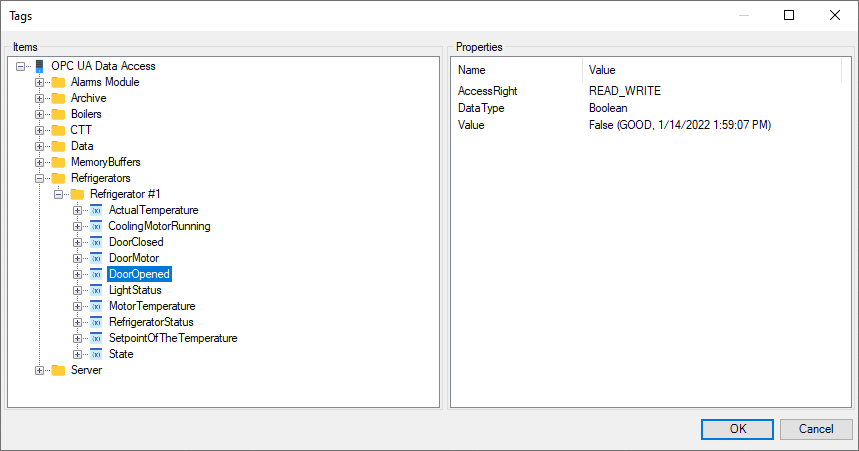
Select the tag you want to monitor and click OK.
Tag Definition
The Tag Definition dialog is updated with the selected tag's identifier and data path.

| Field | Description |
|---|---|
| Tag identifier | Name used to identify the tag in Alert |
| Data path | OPC UA node identifier (e.g. ns=10;i=10) |
Click OK to proceed to the alarm configuration.
Alarm Configuration
The Tag parameters dialog opens. Configure the alarm behaviour for this tag.
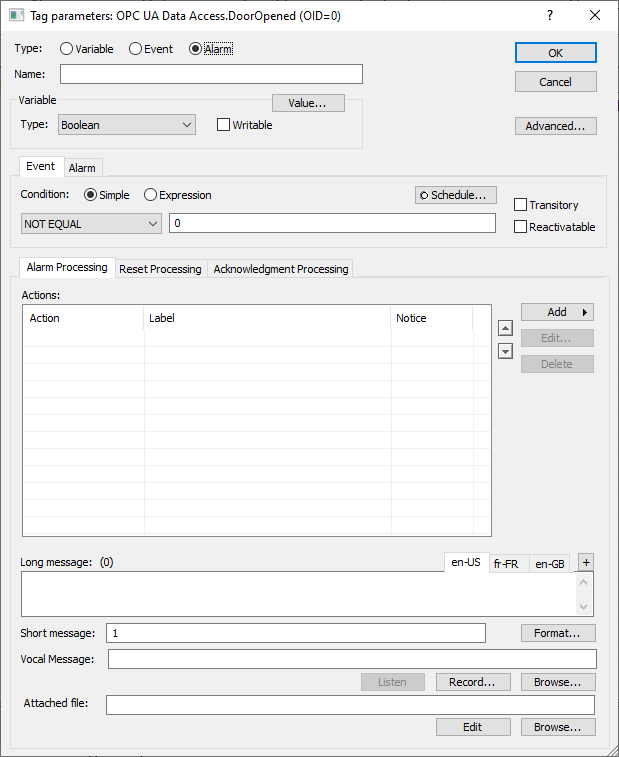
Fill in the alarm settings: name, condition, actions, and messages.
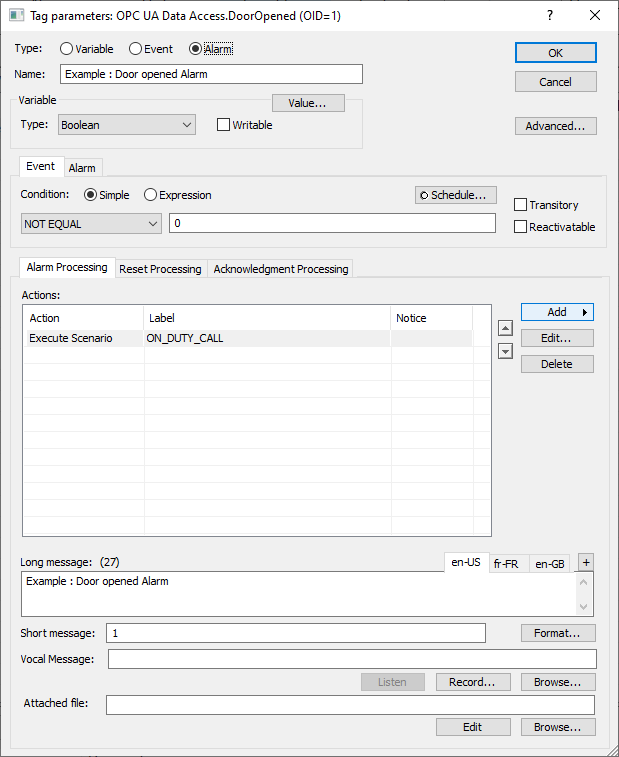
Click OK to save the tag.
Result
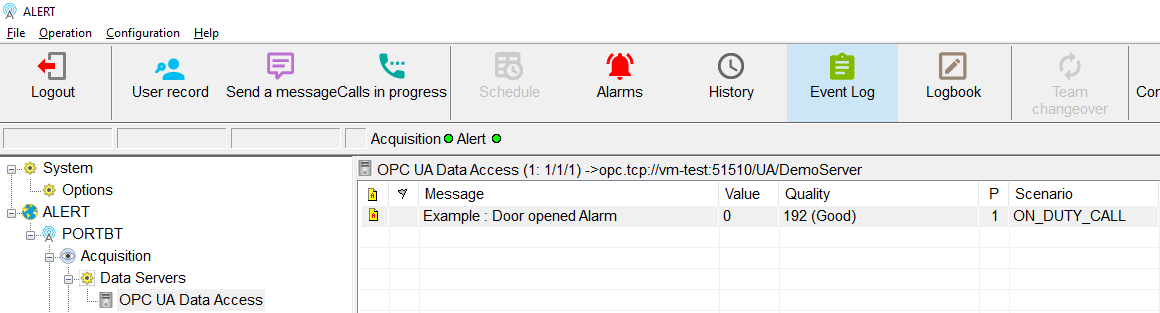
The tag now appears under the OPC UA data server in Alert and is actively monitored.