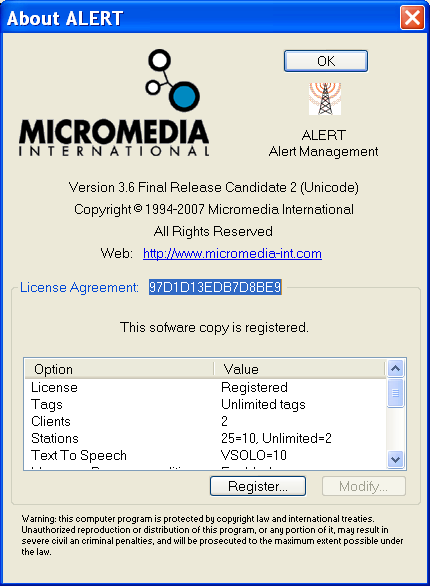
Software Registration
If the Alert software has been provided with a hardware key (dongle), connect this key to a parallel or USB port of the PC (according to the key model). The "parallel port" key can be inserted into an existing printer connection; it also can be used serially with other keys. When launched with a connected key, the software searches in the Windows registry database for a registration entry corresponding to the serial number written in the key. If it doesn"t find a such registration, it searches then for a license file corresponding to the serial number in question (file " ALERT 3.5_XXXXXXXX.LIC , for the serial number "XXXXXXXX"), located in its installation directory (C: \MMI\ALERT by default). This file normally was been copied from th e CDROM during the software installation. If this file is found and valid, the software automatically performs its registration in the Windows registry database, with all the options authorized by the license. If there is no key connected, the software exe cutes the same procedure, but by using a serial number corresponding to an environment code computed from specific characteristics of the hardware system on which it is installed. When the software is not registered (no registration in the Windows registry database, no license file matching the serial number written in the connected key or the computed environment code), the software displays the "About" dialog box.
This dialog box can be called at any moment, by selecting the "About" command from the "?" menu". It can be used to register the software or modify the options authorized by the license. From this dialog box, it is possible to manually register the software:
- Either from a license file, by clic king on the " Register" button then selecting in a directory the licence file corresponding to the serial number or the environment code of the system.
- Or by manually entering the installation code of each option. For each option to register (or modify), you must select it, click ion the " Modify" button, then, on the new displayed dialog box, select the wished value for the option and type the corresponding installation code that has been you given by your provider. By clicking on the "OK" button of the dial og box, without having performed software registration, the application starts in demonstration mode . In this mode, the working time is limited to 60 minutes. After registration of the software, later launchings of the application will no longer display the "About" dialog box, provided the serial number written in the key ever can be accessed (key connected and not defective), or, in case of registration from the environment code of the PC, this environment code has not been modified, following for example a change of master card or network card.
Note : AlertClient software can be freely installed on any station of the network. It requires no registration, under condition a "Client Access" license with at least 2 client accesses has been validated on the server station.