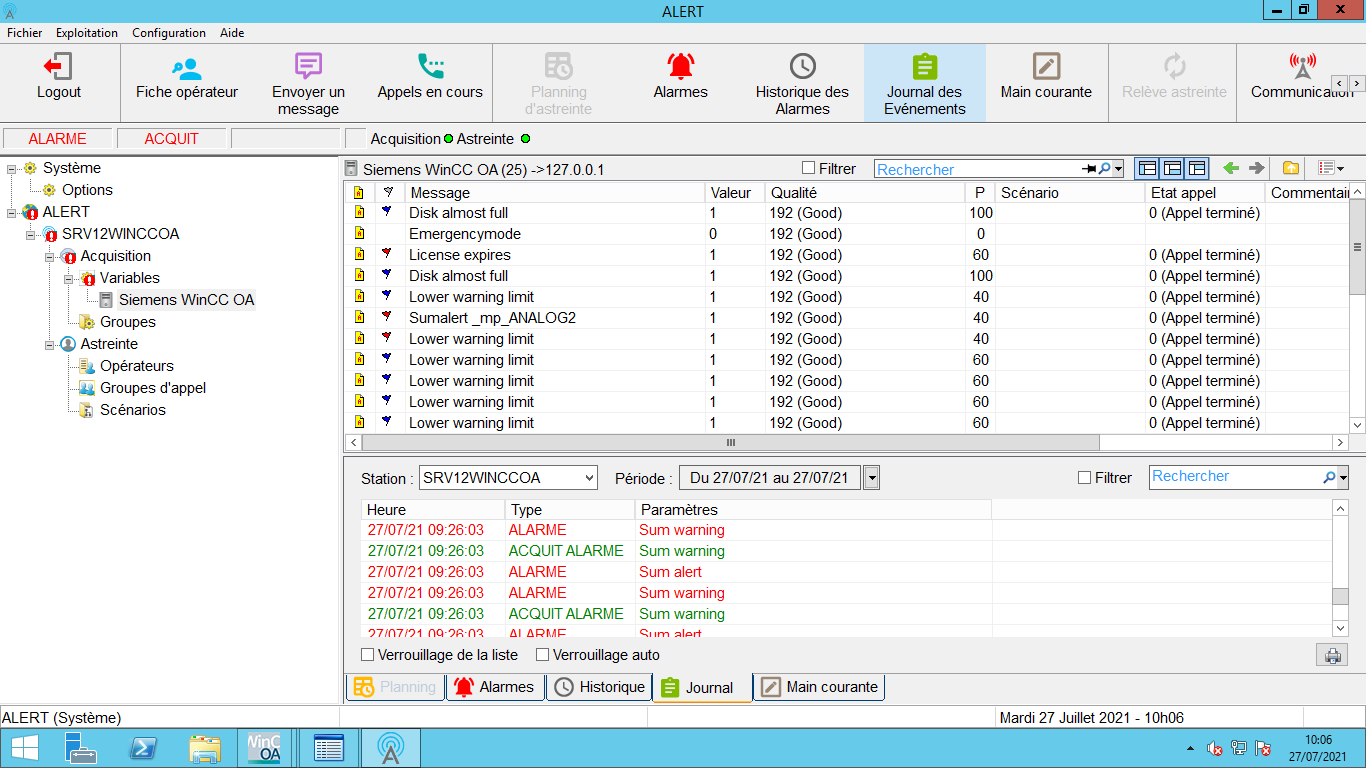
Alert configuration
Before proceeding, make sure the WinCC OA manager has been installed and configured on the WinCC OA host.
Adding a WinCC OA data server
-
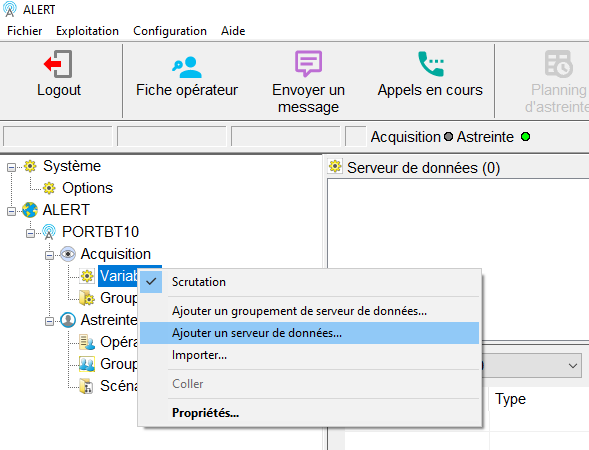
In the Alert tree, right-click Tags and select Add a data server.
-
In the Type dropdown, select Siemens WinCC OA.

-
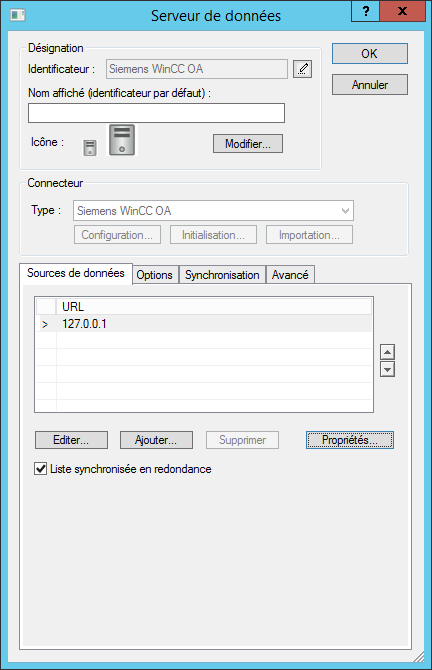
Click the Source button.

-
Enter the IP address of the WinCC OA host (format:
X.X.X.X).
-
Click OK. Alert will attempt a connection test.

-
If the connection test fails, check the network configuration or proceed and retry later.


Troubleshooting — connection failure
If Alert cannot connect to WinCC OA, verify that TCP port 9000 is open on the firewall between the Alert host and the WinCC OA host.
Tags configuration
-
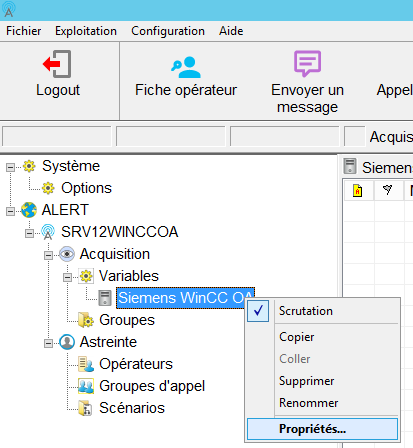
Right-click the newly created data server and select Properties.
-
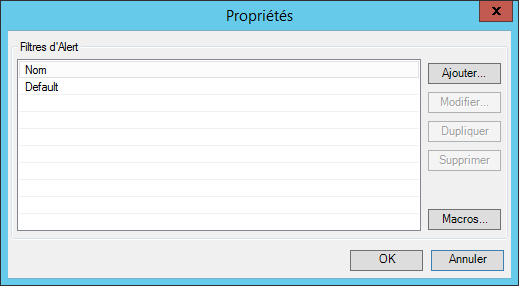
In the Data Server window, click the Properties button.
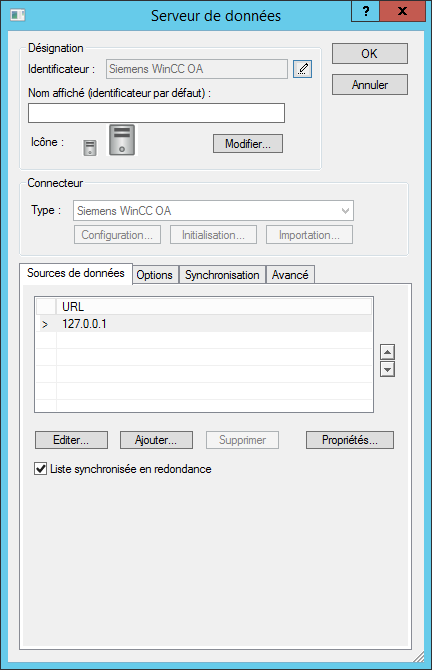
-
Select the Default (Disabled) line and click Update.
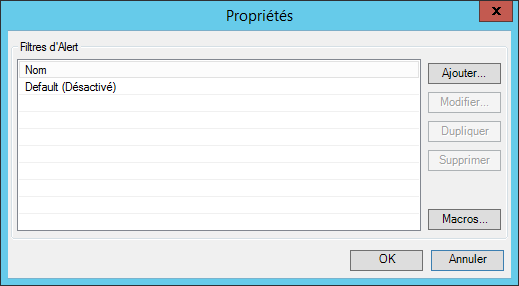
-
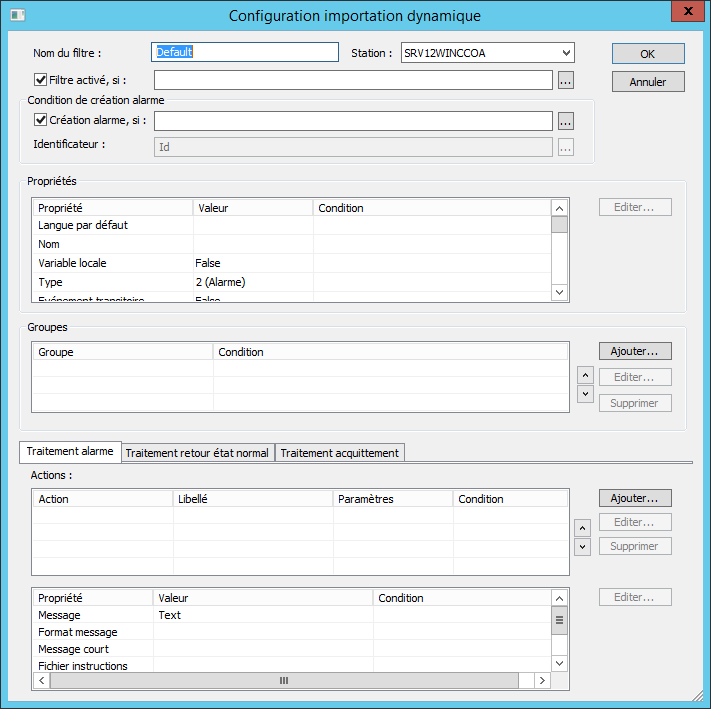
The dynamic importation setup window opens.
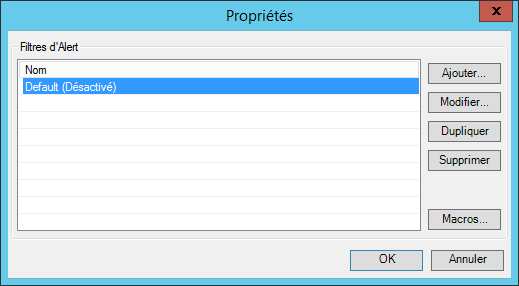
-
Configure alarm organization, actions (receipt, normalization, acknowledgement), and message composition.
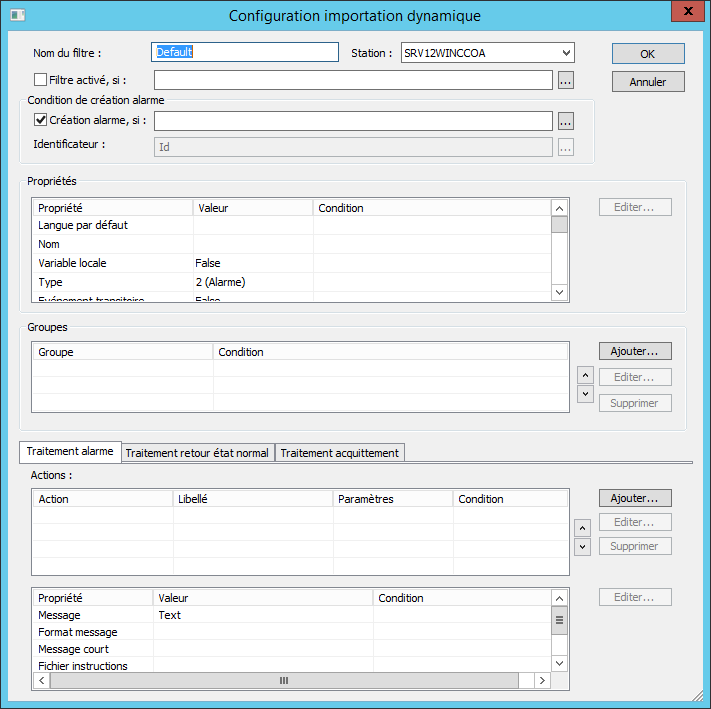
-
Enable the Filter enabled, if option to activate dynamic alarm creation.