Registering your license
To do this, Alert must be able to write information to the registry. In version 3.6 rev 2 (or less) it must therefore be executed from an administrator session. Additionally, from Windows Vista, you must start the Alert software by performing a privilege elevation request (right-click the executable, Run as administrator). In version 4.0 (or more) it isn't necessary, the privilege elevation will be requested during the registration.
-
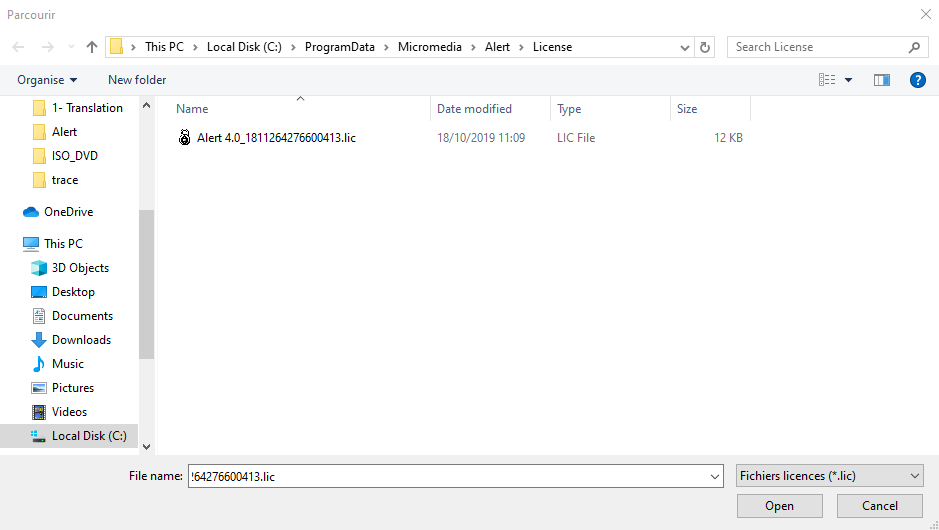
Copy the ".lic" file that we have sent you via email in
C:\ProgramData\Micromedia\Alert\License. -
Launch Alert as administrator.
-
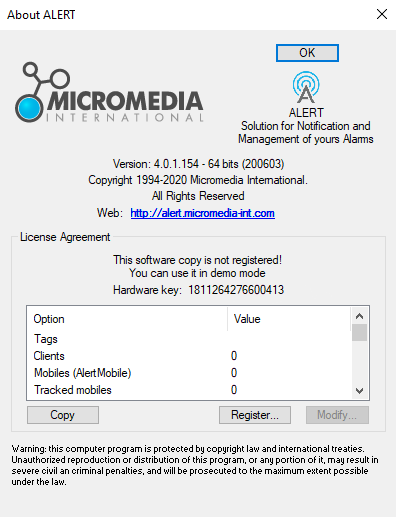
In Alert open About Alert under Help (If your Alert is in demo mode it will automatically open on launch):
-
Click on Register.
-
Find the ".lic" file corresponding to the number found in About Alert (in our example 1811264276600413).
-
Click Open.
-
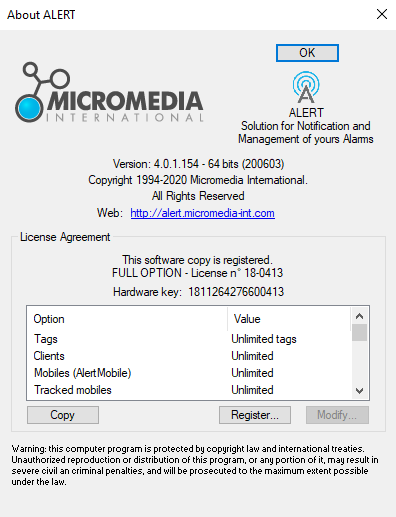
You should now see all the options included in your license in About Alert.
-
The license has been registered. Complete the registration process by clicking OK.